Fortnite on Steam Deck: Decky Loader and xCloud Workaround Guide
Play Fortnite on Steam Deck via Decky Loader & NonSteamLaunchers—stream Xbox Cloud Gaming with automatic setup and controls.
For a Steam Deck owner eager to drop into Fortnite, the situation can feel like a classic Epic-versus-Steam standoff: Fortnite is not natively available on Steam OS. The old-school manual workaround involves switching to Desktop Mode, wrangling complex lines of code, and praying a Proton update does not break the controls. That is a lot of hoops to jump through. Enter Decky Loader, a homebrew-style plugin hub, and NonSteamLaunchers, an app created by GitHub user Moraroy. Together they make it possible to add Fortnite to the Steam Deck's Gaming Library through Xbox Cloud Gaming, with the heavy lifting handled automatically. The following story walkthrough covers the whole journey, from enabling Developer Mode and creating a sudo password to streaming Fortnite in Gaming Mode and recovering Decky Loader after major SteamOS updates.
Why Bother With the Workaround?
-
A native Fortnite client is still missing from Steam, and manual Proton edits can be a minefield.
-
Decky Loader runs as a plugin in the Quick Access Menu and supports games and services outside Steam.
-
NonSteamLaunchers installs the latest Proton versions, adds non-Steam launchers to Gaming Mode, and pre-configures controls.
-
xCloud streams Fortnite without a massive local install, though a solid internet connection is the name of the game.
Before going down the rabbit hole, set up a sudo password. Recent SteamOS builds require admin privileges before third-party installers such as Decky Loader will run. In Desktop Mode, click the Steam Deck icon in the bottom-left corner, search for Konsole, and open it. Type passwd and then enter a memorable password twice. Losing or forgetting that password can lead to a factory reset, so treat it like a spare key, not a throwaway.
Then install Decky Loader:
-
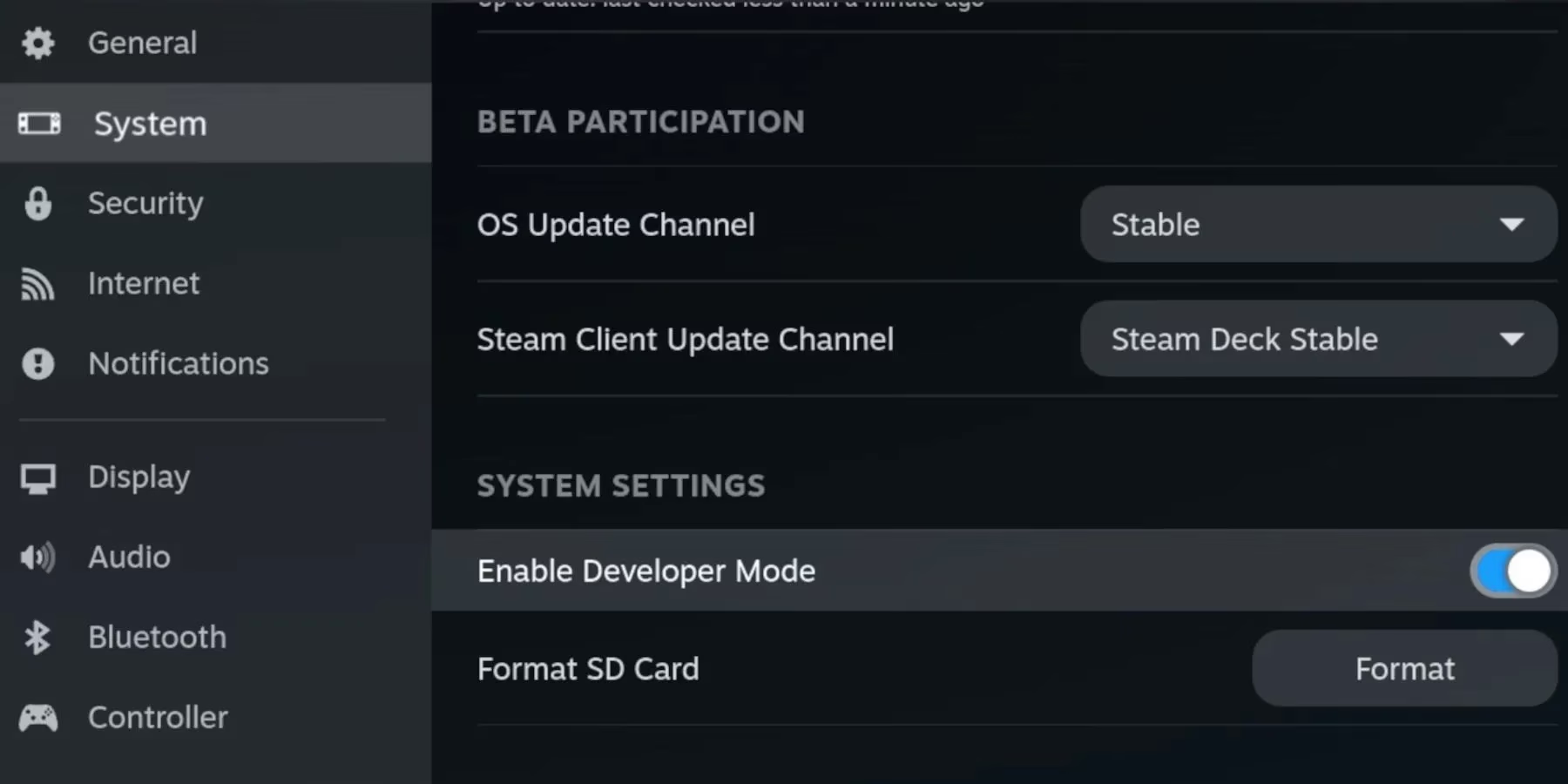
Press the Steam button and open System.
-
Switch Developer Mode on.
-
Scroll the left-hand menu to Developer and make sure CEF Debugging is on, then restart the Steam Deck.
-
After the restart, press the Steam button, tap Power, and switch to Desktop Mode.
-
Open the Discovery store icon in the bottom-left, search for Google Chrome, and install it.
-
Open Chrome, navigate to the Decky Loader GitHub page, and download Decky Loader.
-
In the Downloads folder, double-tap the Decky Loader icon and choose Recommended Install.
-
When installation finishes, return to Gaming Mode from the desktop icon.
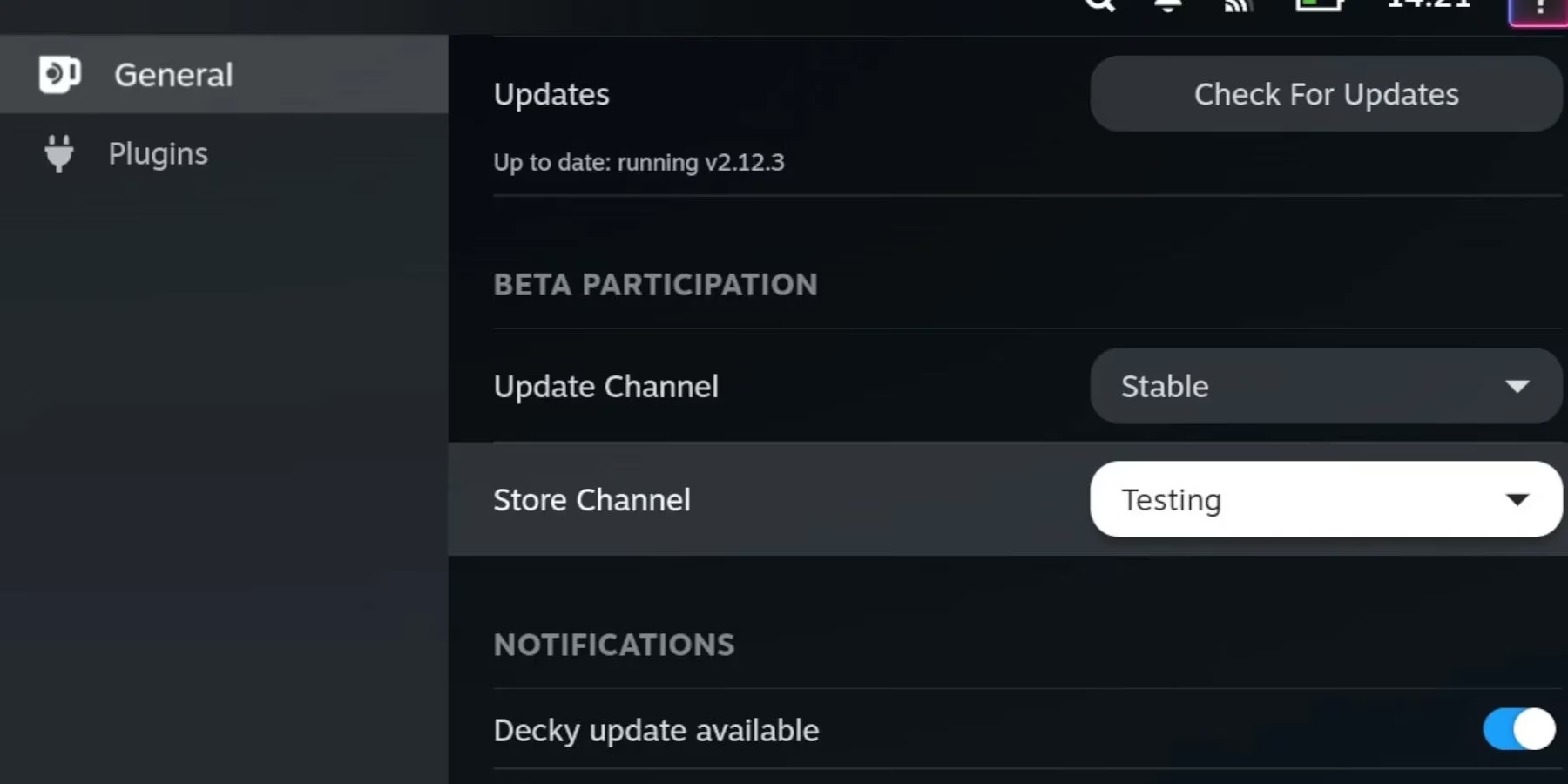
To locate NonSteamLaunchers, switch Decky Loader to the Testing Store:
-
Press the QAM (Quick Access Menu) button.
-
Open the plugin icon at the bottom of the menu.
-
Click the Settings cogwheel.
-
Under General, use the Change the Store Channel dropdown to select Testing.
-
Exit the General menu and click the Store icon; the Testing Store appears.
As of 2026, there is a wrinkle: NonSteamLaunchers was removed from the Decky Loader store without explanation. If that remains unresolved, the injector route is the workaround:
-
In Desktop Mode, open the browser and head to the NonSteamLaunchers GitHub page.
-
Download the
NSLplugin.desktopfile. -
Double-click the installer, select Execute, and enter your sudo password or create a new one.
-
Select 'update to latest release' and click OK.
-
Switch back to Gaming Mode.
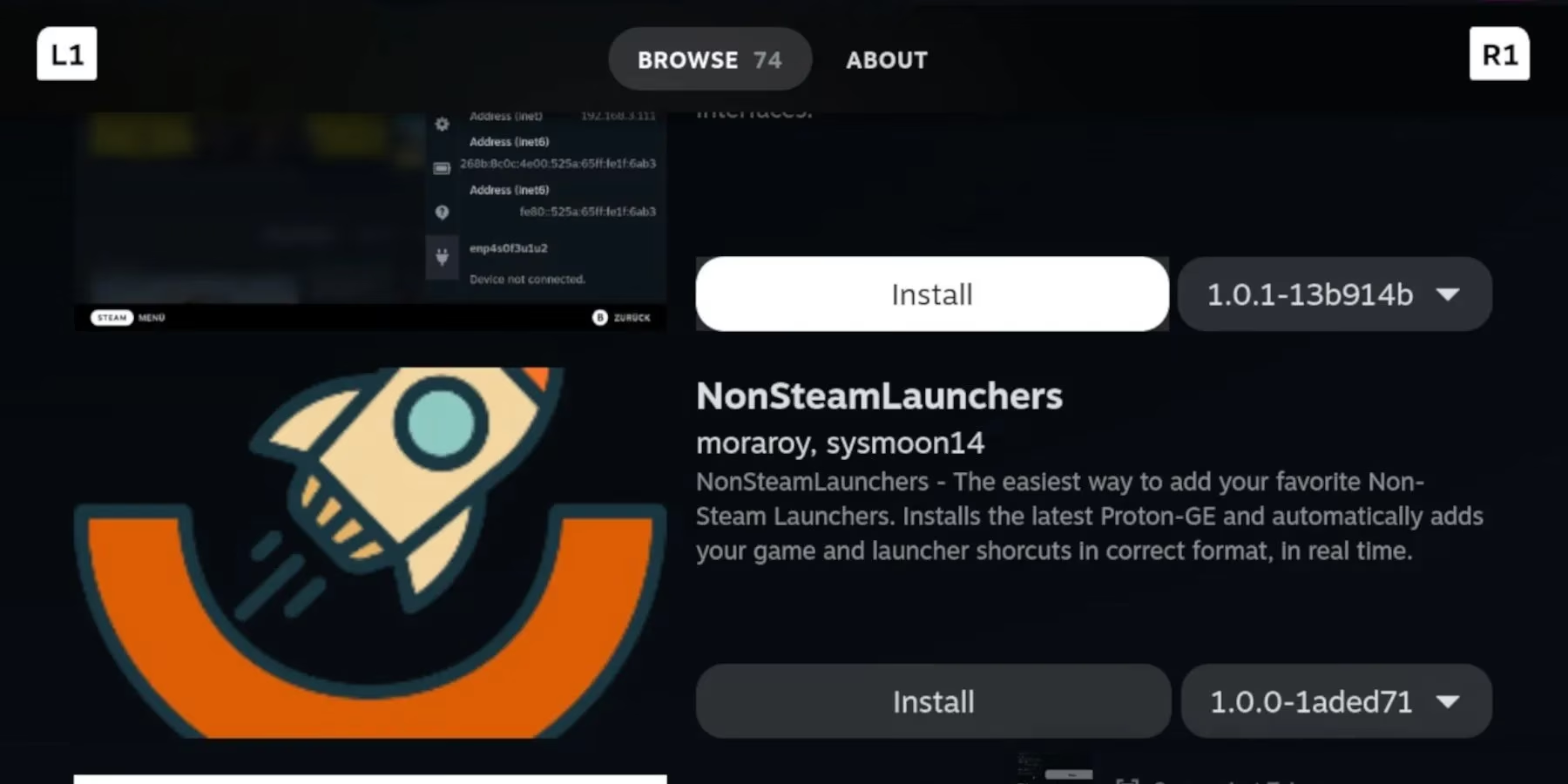
With NonSteamLaunchers ready, adding Fortnite is surprisingly painless:
-
Press the QAM button to open Decky Loader.
-
Access the NonSteamLaunchers menu.
-
Toggle Auto Scan Games on.
-
Open the Streaming menu and toggle Fortnite xCloud.
-
Wait a few minutes for the installation to complete.
-
Press the Steam button and open Library.
-
Press R1 to move to the Non-Steam tab.
-
Open the newly created Fortnite shortcut and select Play.
-
Sign in to an Xbox account, tap play, and the Battle Bus departs.
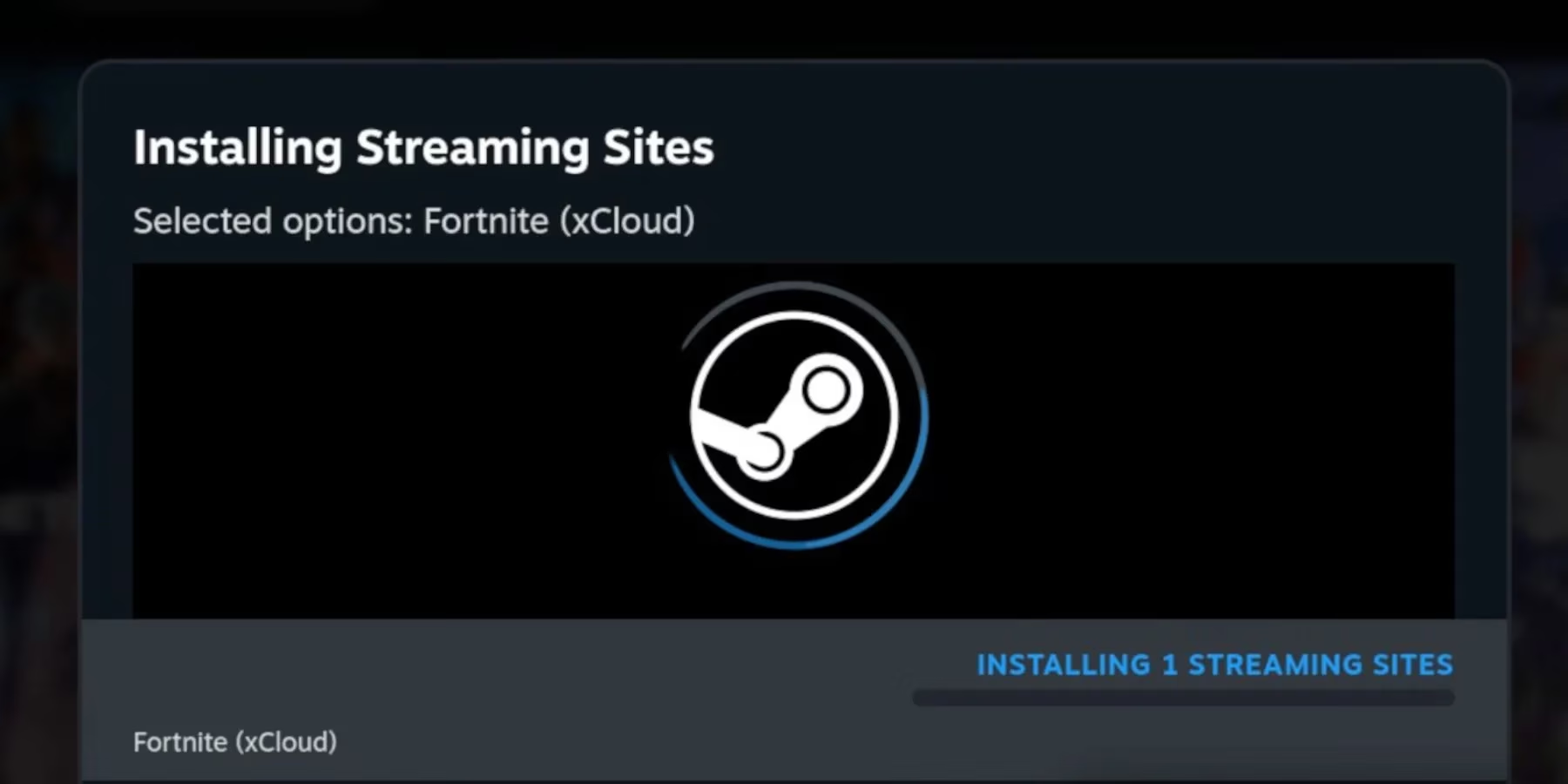
Because NonSteamLaunchers bakes in the latest Proton settings and controller configs, you should not need to remap buttons or fiddle with screen options. That said, xCloud is a streaming solution, so latency depends on internet quality. For a Steam Deck owner on the go, this can feel like magic; on a shaky hotel Wi-Fi connection, expect a few dropped frames.
Major SteamOS updates can knock Decky Loader out of the Quick Access Menu, but the plugins and settings are not usually lost. To bring everything back:
-
Press the Steam button, open the Power menu, and switch to Desktop Mode.
-
Open a browser and navigate to the Decky Loader download page.
-
Download and double-click the Decky installer.
-
Select Execute, not Open.
-
Enter the sudo password at the prompt.
-
Run the installer again if needed and type the password to begin installation.
-
Restart in Gaming Mode, press the QAM button, and the recovered Decky Loader should be back with its plugins.
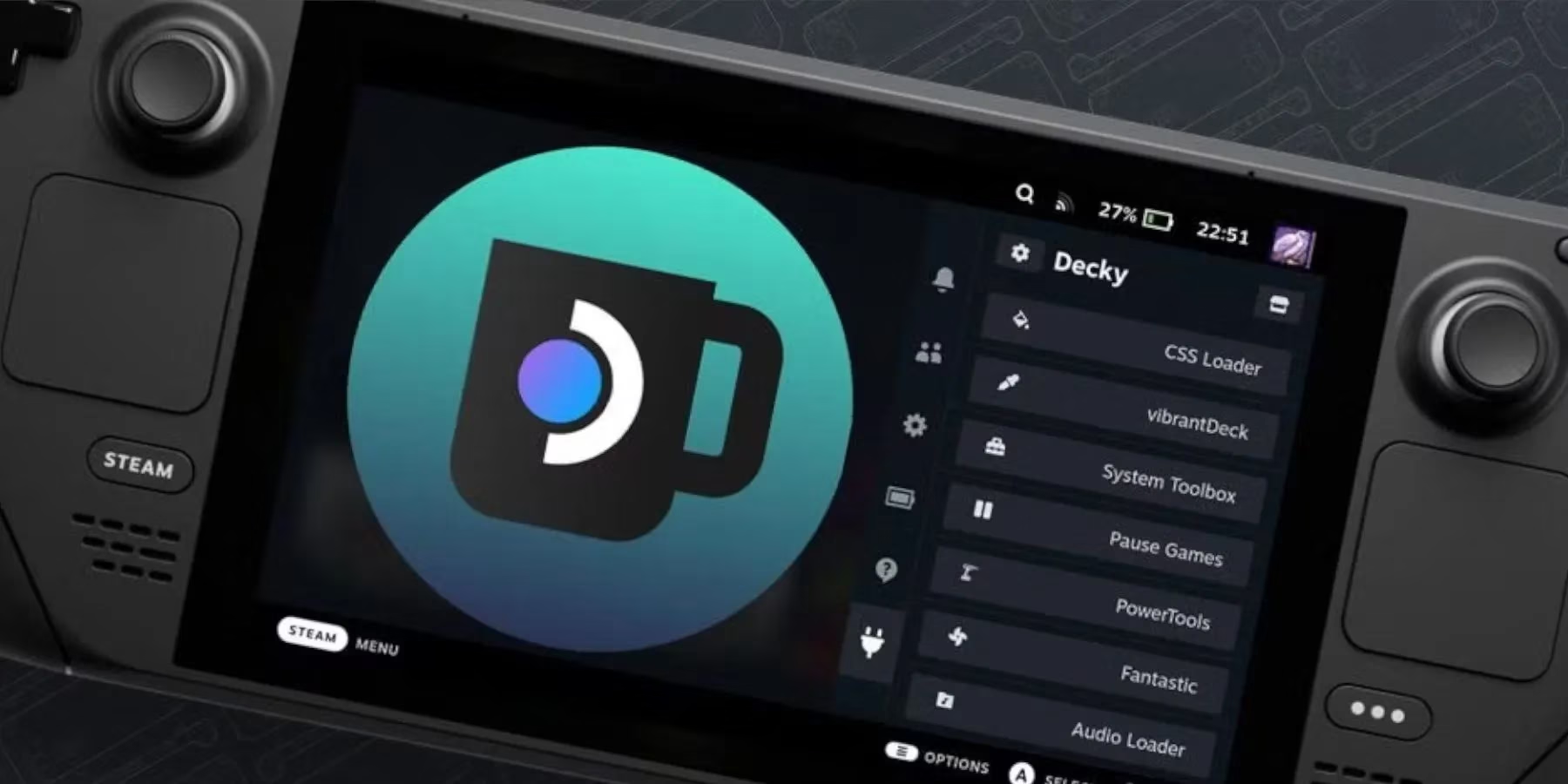
The long and short of it is that Fortnite on the Steam Deck is not officially supported through Steam, but the Decky Loader and NonSteamLaunchers combo offers a repeatable path. For anyone willing to spend a little time in Desktop Mode once, the payoff is Fortnite in Gaming Mode alongside the rest of the library. The real kicker is that NonSteamLaunchers also opens the door to other non-Steam launchers, so the setup keeps giving.
Leave a Reply